
Call for Sites map guidance
How to plot and export your site area for the Call for Sites form
Before starting the Call for Sites submission form, users must draw their site area on a web map and download a map file. This is required to complete the form.
You will not be able to progress the web form until you have uploaded the correct map file attachment.
This guidance has been designed to assist users on a PC or laptop device. If you encounter issues completing this step, please email planning.policy@north-norfolk.gov.uk or call 01263 516318.
Creating your Call for Sites map
1. Open the map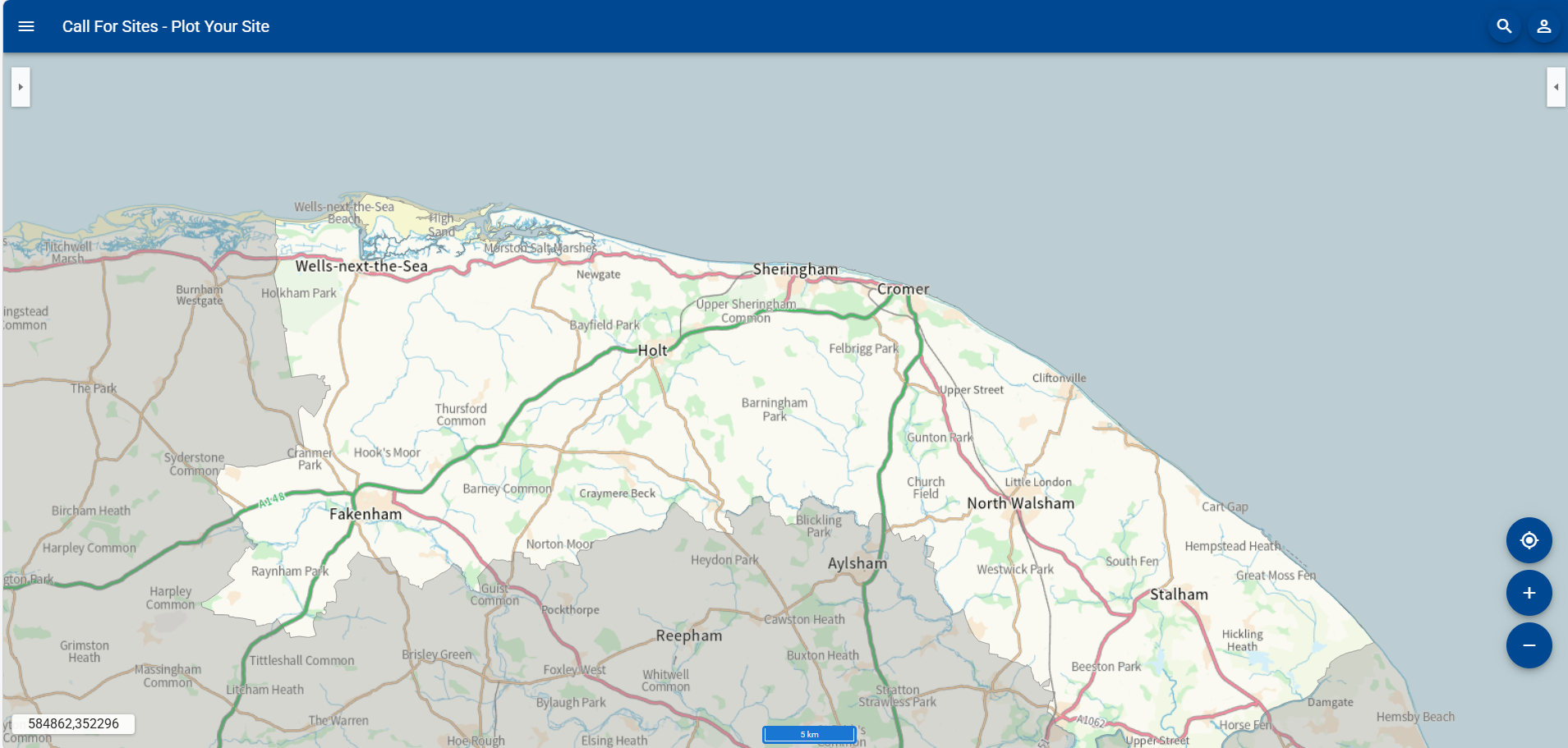
2. Either: (1) Zoom to the site area that you wish to plot. You can move the map by clicking, holding and then dragging your mouse. You can zoom by using the mouse scroll wheel if you have one or by selecting the plus or minus buttons on the map. Then go to Step 4.
Or (2) To search by an address, select the magnifying glass in the top right corner. Then go to Step 3.
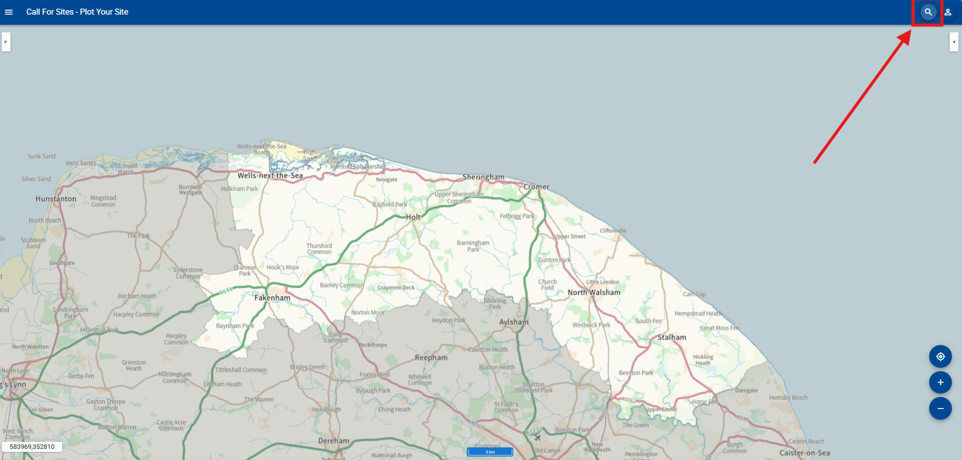
3. Start typing the site address in the search box. Select the address in the list to take you to that location on the map.
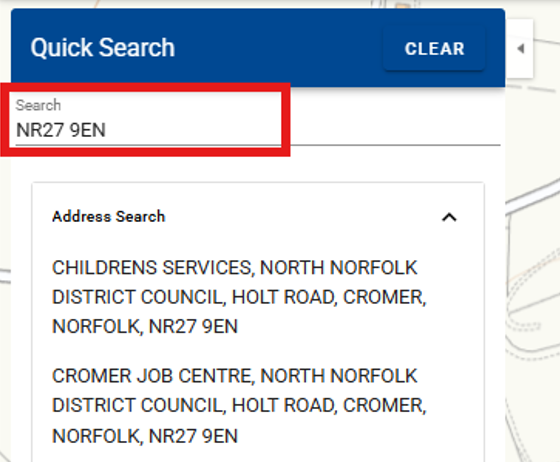
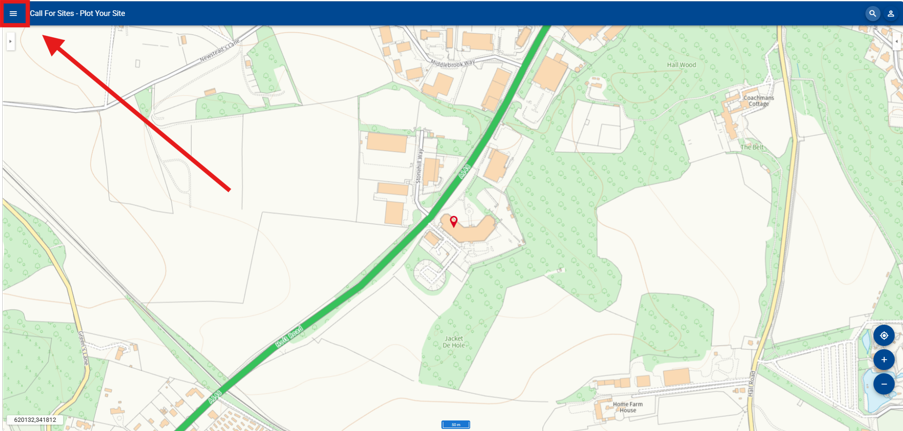
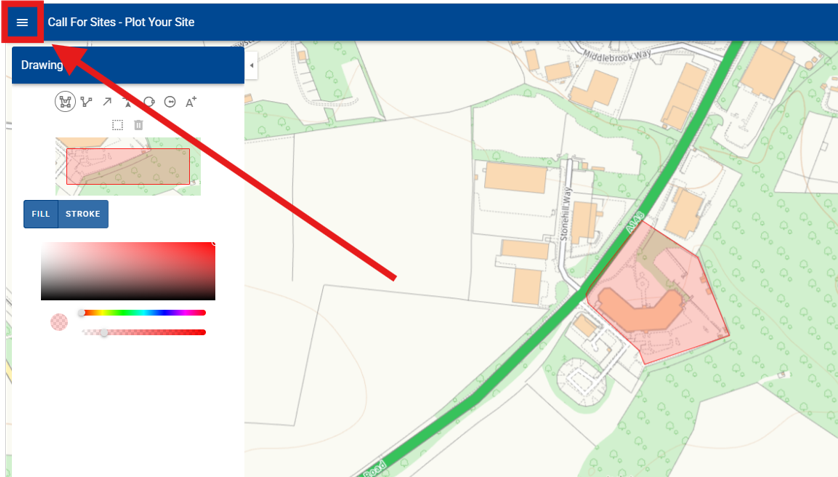
4. Once you are in the rough area of your site, open the menu located within the three lines in the top left corner of the map.
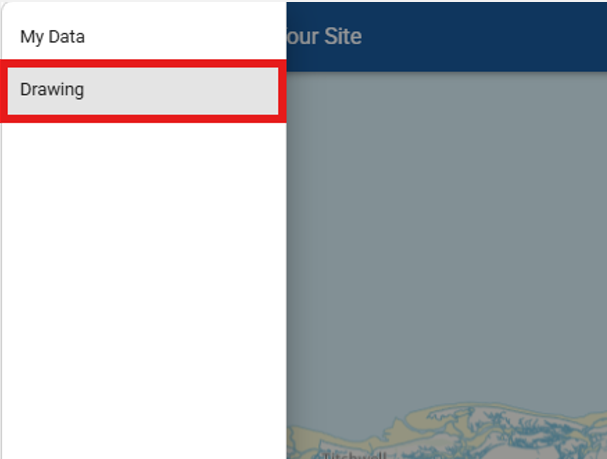
5. Select Drawing
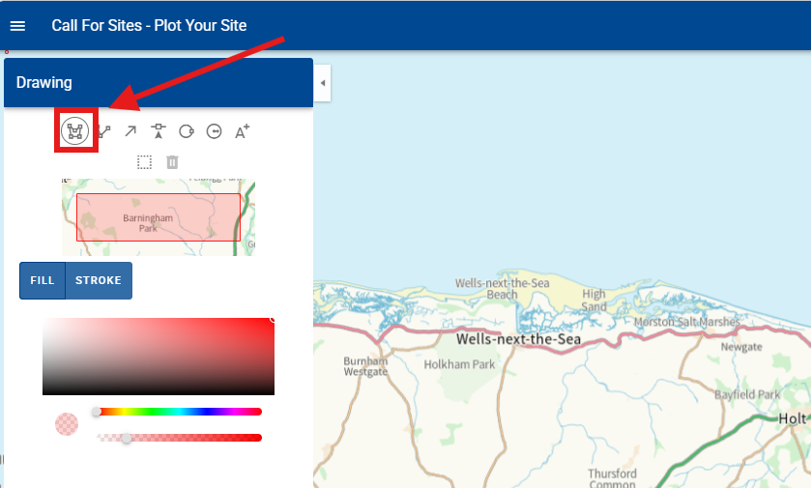
6. Select the 'Draw polygon' symbol
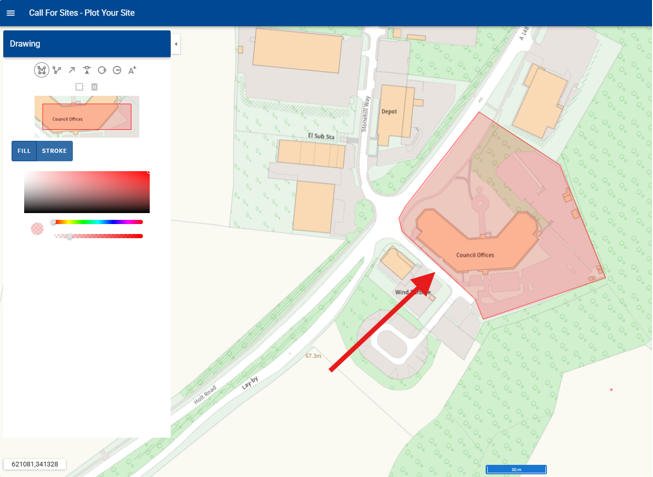
7. Carefully plot the site on the map. Click once for each point and double click to complete the site polygon. Please plot the outline of your site as specifically as possible.
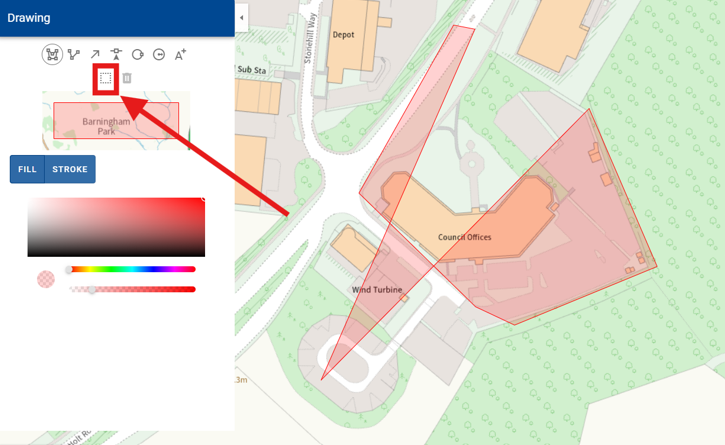
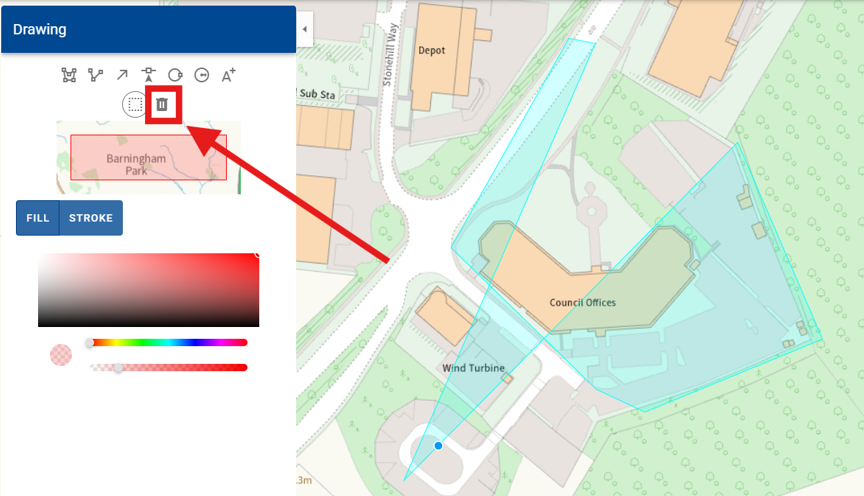
If you make an error, you can delete the polygon if you need to replot it. Firstly, choose the 'Select a feature' tool.
Then, click on the polygon. It should turn light blue once selected.
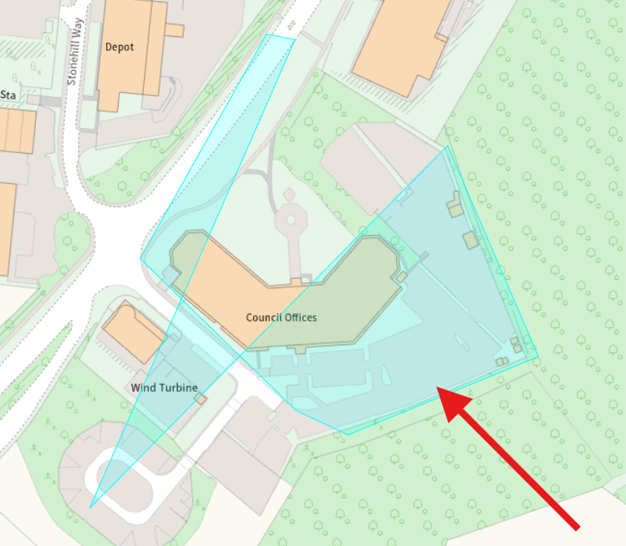
Now you can delete it by selecting the bin symbol. Once deleted, you can plot again by selecting the draw polygon symbol.
8. Once you have plotted your site, open the main menu again.
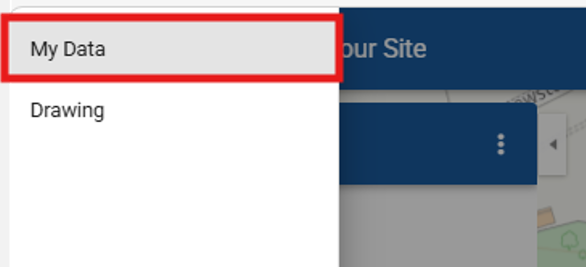
9. Select My Data
10. Select the three dots
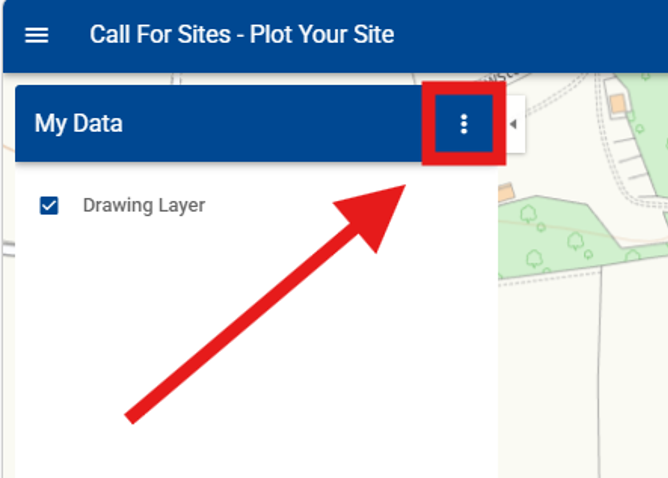
11. Select Export
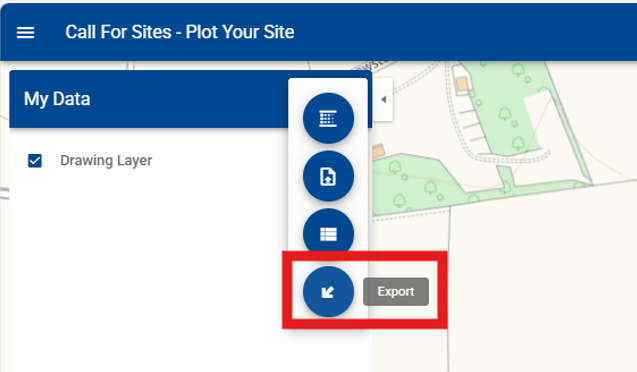
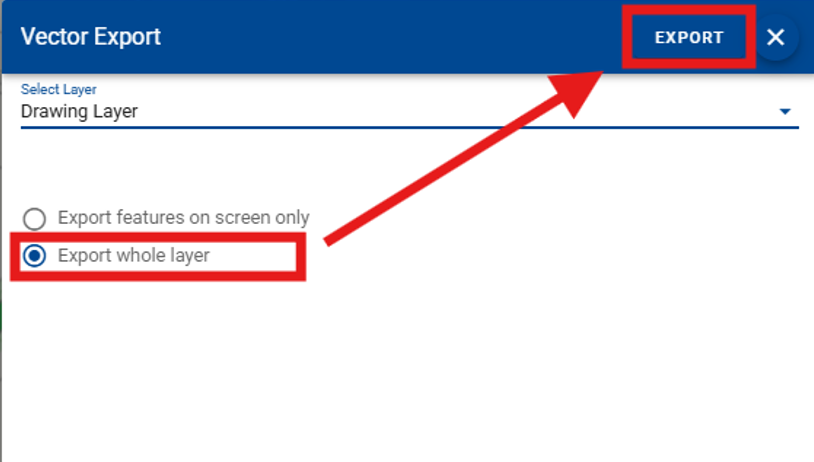
12. Open the Select Layer drop down menu
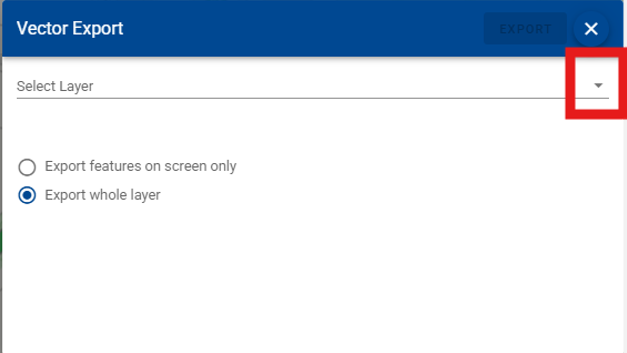
13. Choose Drawing Layer
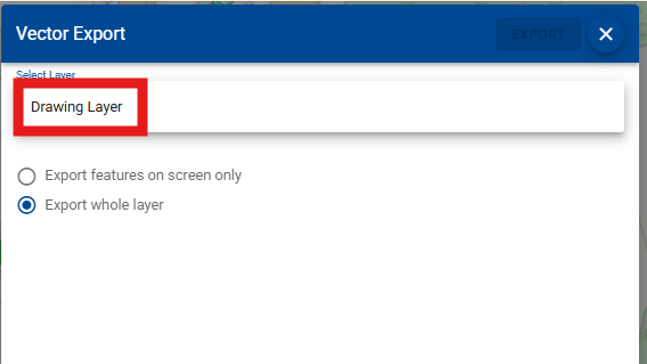
14. Choose Export whole layer and then select Export
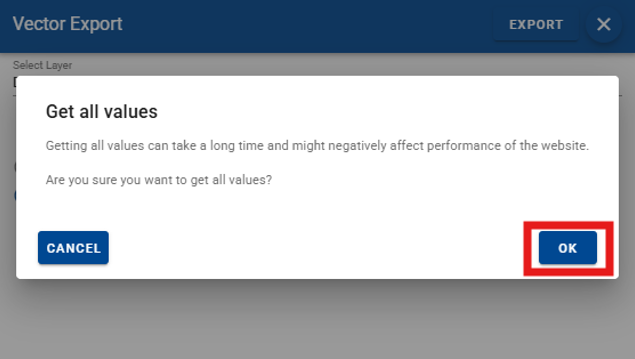
15. Select OK
16. At the bottom of the screen, a small text box will appear
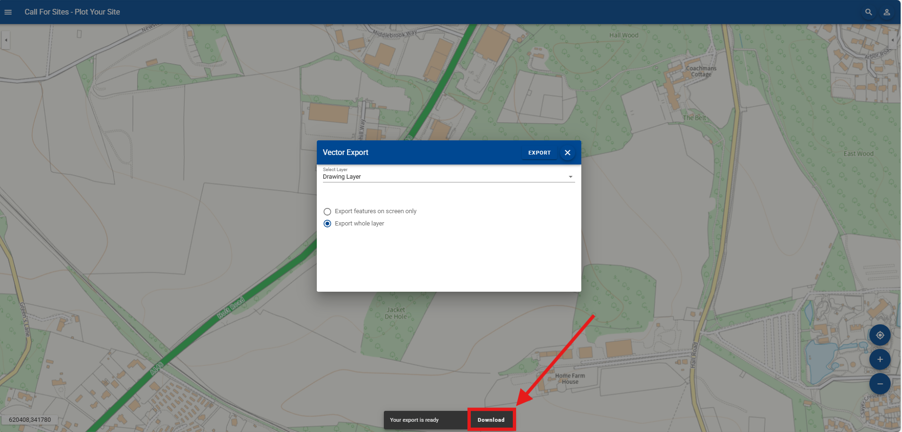
Select Download
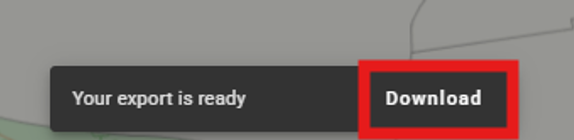
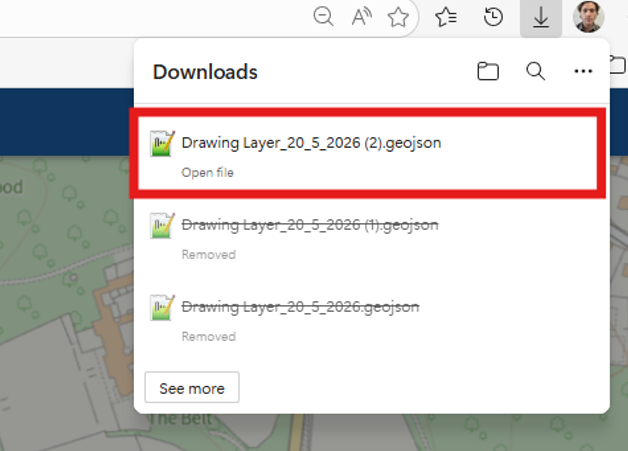
17. The GeoJSON file containing the site polygon will now appear in your downloads folder. Do not open or move the file. Keep a note of the file location to upload later in the Call for Sites form.
Once all the steps have been completed, please return to the Call for Sites webpage and start Step 2.
Still need help?
Visit our contact us page for further assistance about our popular services and information.